Enhancing Windows 11 Efficiency with Microsoft PowerToys Utilities
Explore how Microsoft PowerToys can optimize your Windows 11 productivity with tools for color picking, screen zooming, and window management.
Q. Are there extra Windows utilities that can enhance visuals and increase my Windows 11 productivity?
A. In addition to the built-in tools offered in Windows 11, there are third-party utilities, notably Microsoft PowerToys, that can greatly improve both productivity and user experience. This suite of tools is designed to add functionality and streamline workflows, making everyday tasks simpler and more efficient.
Installation of Microsoft PowerToys
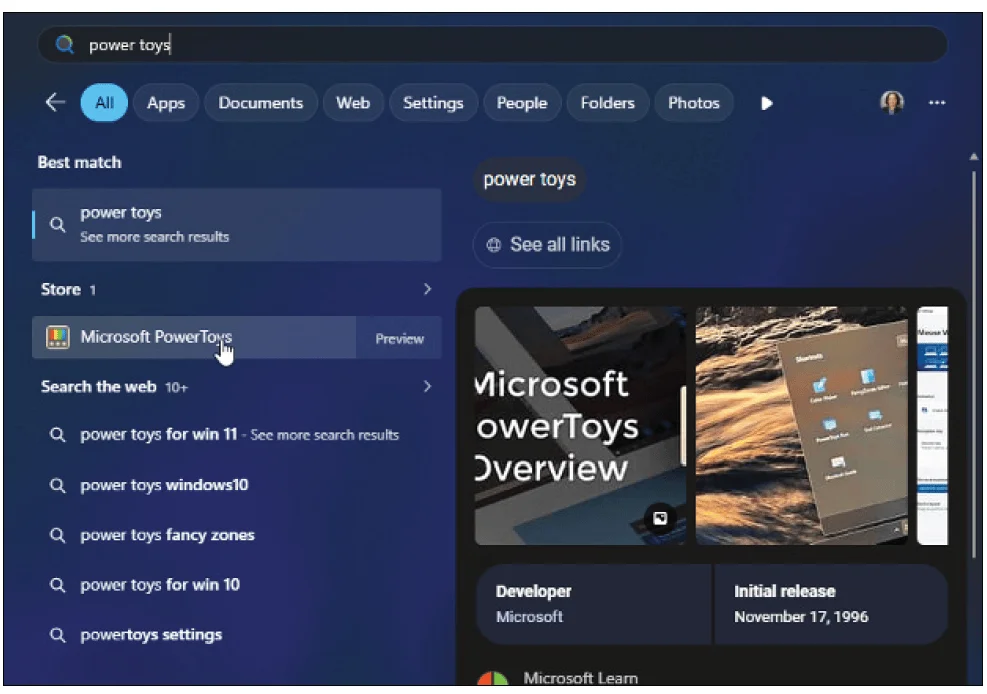
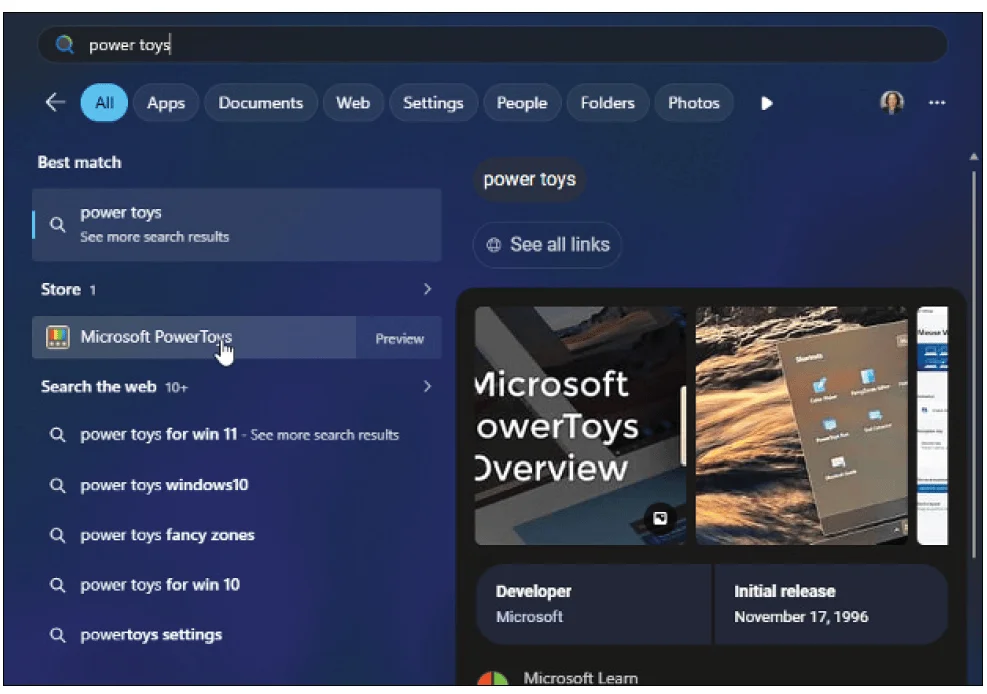
To begin enhancing your system, installing PowerToys is straightforward. You can access it through the Start menu by searching for “PowerToys” or “Power Toys” — both terms yield results. Launch the application to access the Microsoft Store, where you can click on the “Install” button to download the program.
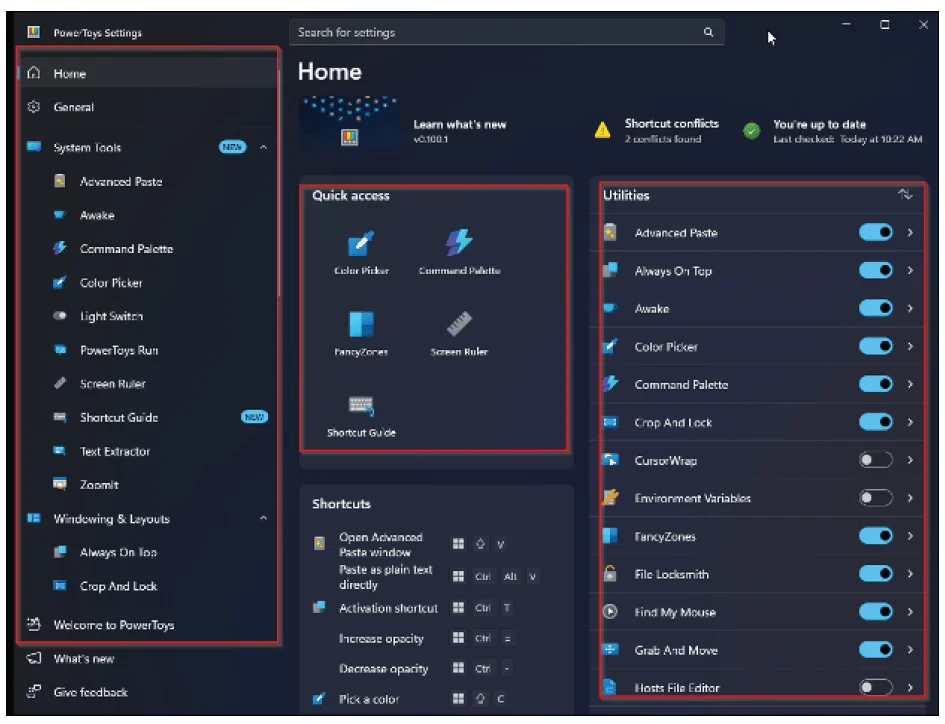
Once installation is finalized, PowerToys opens to a home screen presenting various options. The left sidebar displays all available tools, while the right side provides a summary of currently active utilities. In this article, I’ll cover just a selection of useful tools from this versatile suite.
Utilizing the Color Picker Tool
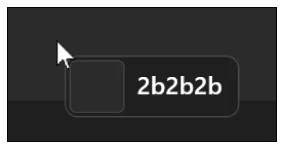
The Color Picker is among the first utilities worth exploring. This feature allows you to click anywhere on your display to obtain the HEX code of a color. For example, black is represented by the code 000000, white by FFFFFF, and red by FF0000. This tool is especially helpful when needing to match colors from logos or graphical designs accurately. Activating Color Picker can be easily done with the keyboard shortcut Windows+Shift+C, which will generate a tooltip displaying the color code.
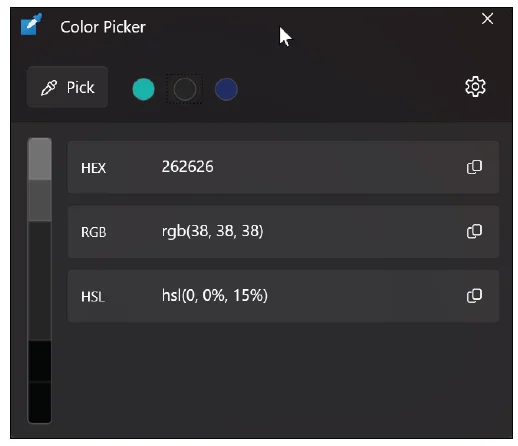
When you select a color, a window pops up that details the HEX code along with conversion to different color formats. This allows for seamless integration into design applications or emails, enhancing professional presentations.
Maximizing Presentations with ZoomIt
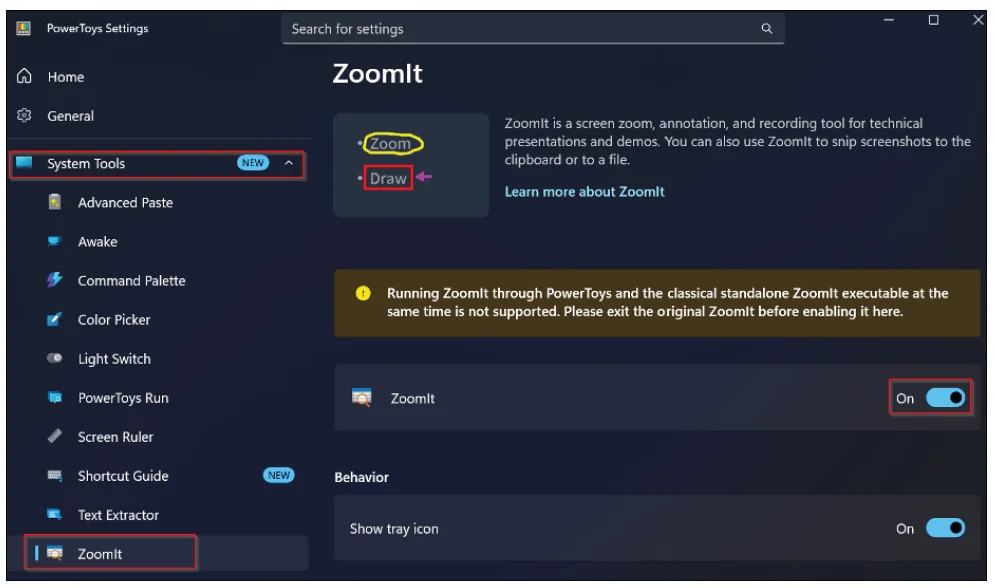
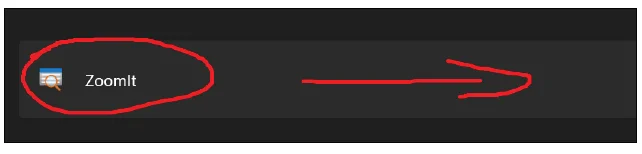
The ZoomIt feature is particularly beneficial for those who frequently share their screens during presentations. Once activated through PowerToys under System Tools, users can enable zooming and annotating functionalities. The zoom function, triggered by Ctrl+1, allows presenters to hone in on specific portions of their screen, while the annotation feature activates with Ctrl+2. The annotations are made by clicking and dragging the cursor, enabling clear commentary directly on the presented material.
To revert to the standard cursor, simply press the Esc key; all annotations will be cleared from view, facilitating a cleaner presentation environment.
Finding Your Pointer with Enhanced Features
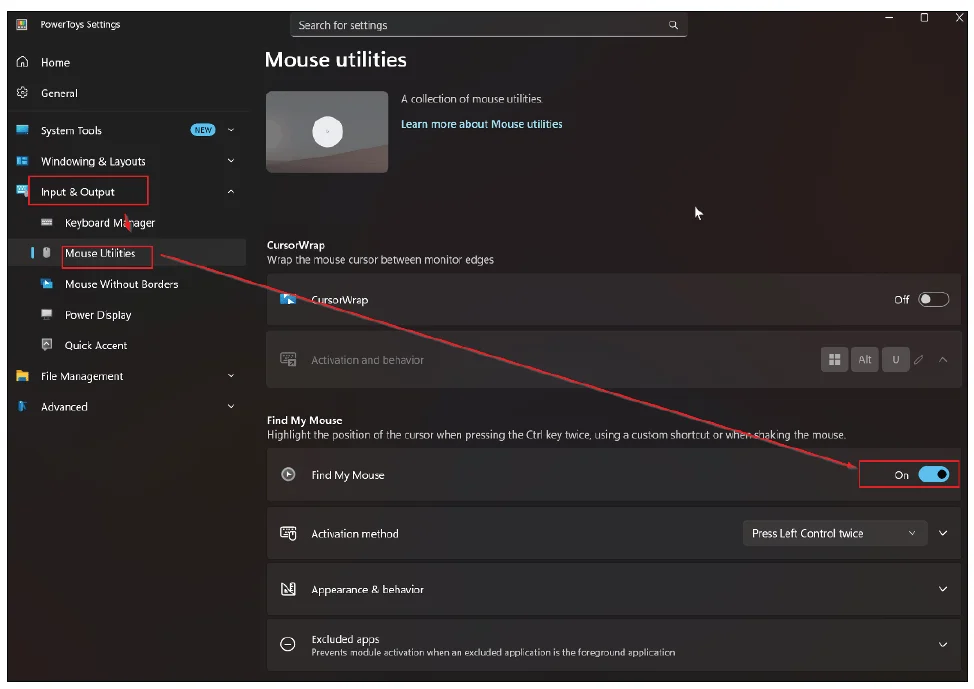
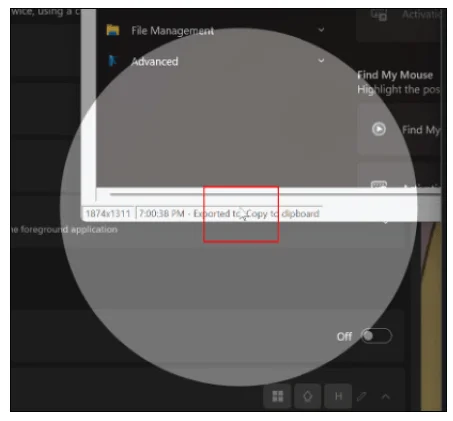
Windows 11 includes a basic “Find My Mouse” feature that allows users to locate their pointer by pressing the Ctrl key. However, PowerToys offers an advanced version that dims the background and highlights the cursor, making it significantly easier to locate. This can be activated through PowerToys by navigating to Input & Output, selecting Mouse Utilities, and toggling “Find My Mouse” on. To use the tool, double-tap the Ctrl key, illuminating your cursor, which is showcased in a spotlight effect.
Streamlining Workflows with Crop And Lock
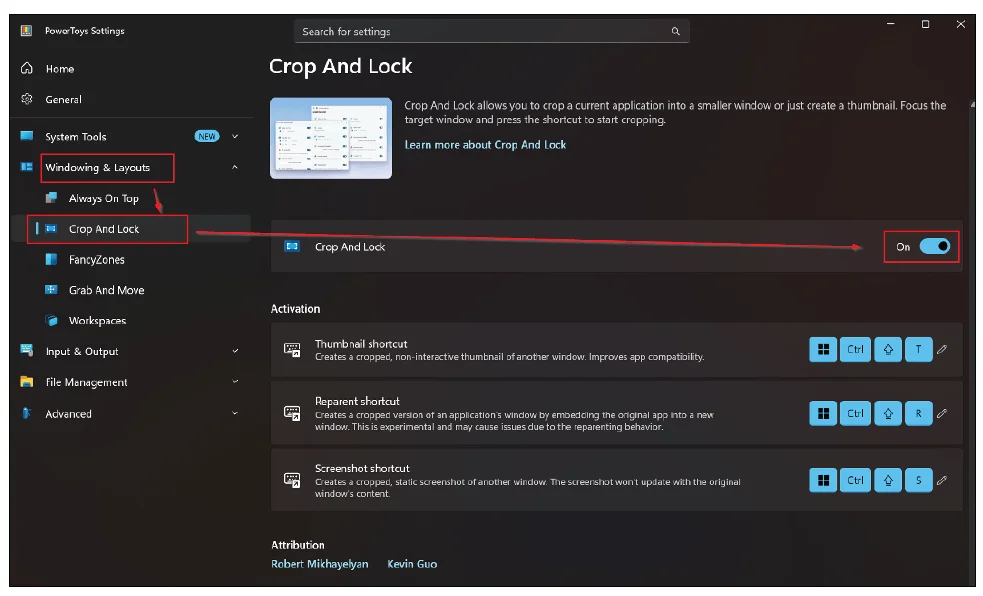
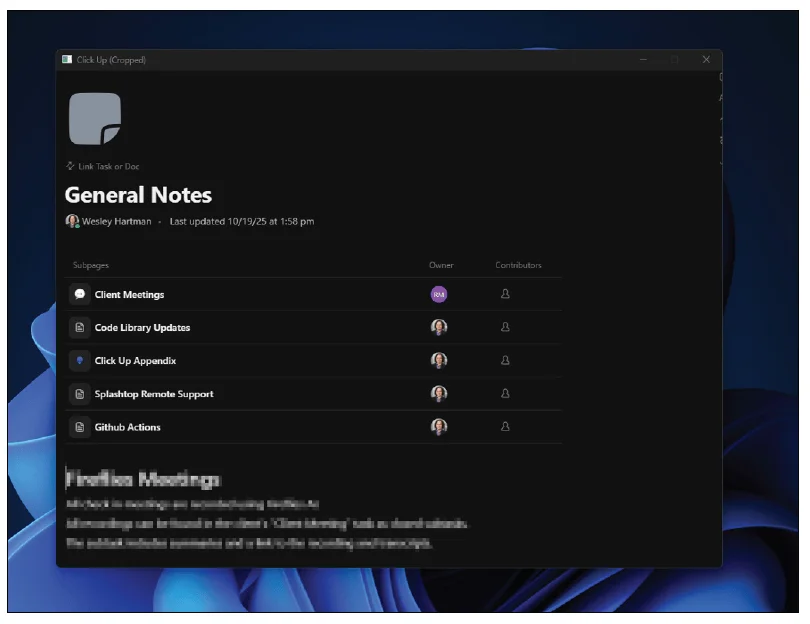
The Crop And Lock utility is designed for users with limited screen real estate, allowing them to focus exclusively on a cropped version of any window. By activating this feature through Windowing & Layouts in PowerToys, you eliminate distractions from menus and other on-screen elements, allowing for a streamlined workspace. For instance, while working with a busy application, using Crop And Lock gives you the flexibility to concentrate solely on necessary content.
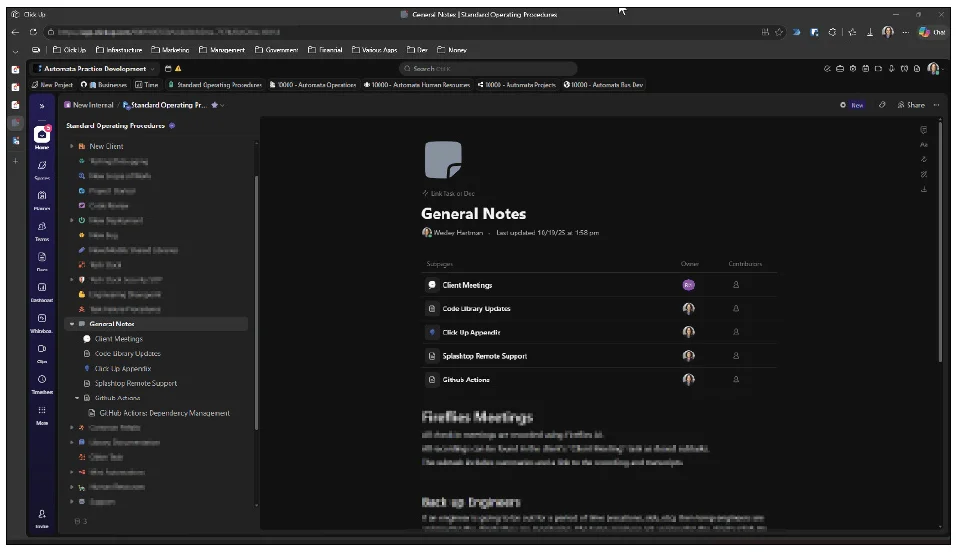
To activate, click on the target window, and Crop And Lock immediately isolates it; you can interact with this cropped area as if it were a standalone application. This feature becomes particularly useful when navigating through dense information, like operating procedures or lengthy documents, catering to enhanced focus and task management.
Conclusion: Boosting Productivity with PowerToys
Microsoft PowerToys is packed with shortcuts and tools that tackle small yet impactful limitations within the Windows environment. Starting with effective utilities like “Find My Mouse” and advancing to more complex tools such as “Crop And Lock,” users can see marked improvements in their productivity levels. Exploring these functionalities will enable a more tailored experience, catering specifically to the needs of any Windows 11 user looking to optimize their workflow.
About the Author
Wesley Hartman is the founder of Automata Practice Development.
Submit a Question
Have technology questions for this column? Reach out to [email protected] with your inquiries or suggestions for better solutions.